Unreal Plugin Setup
Install the plugin and grab the first API keys to get rolling.
Install the plugin
You can get the plugin from different sources depending on your project setup and personal preference:
Understand plugin API Keys
The Unreal implementation expects 2 API Keys:
Runtime API Key
- This key should be configured to be safe for public use.
- It will be used by your end-users (e.g.: players) to send & receive data (e.g.: analytics events).
- They key will be packaged in the final package. The plugin will show an error in the project settings if overly restricted permission is used here.
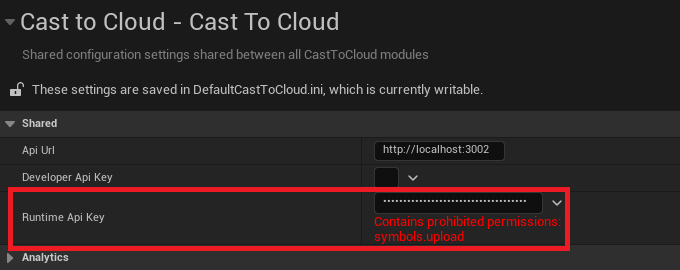
Developer API Key
- This keys is intended for internal use only.
- It will be used by your team (e.g.: developers) to to send & receive sensitive data (e.g.: connect to build machines, studio telemtry).
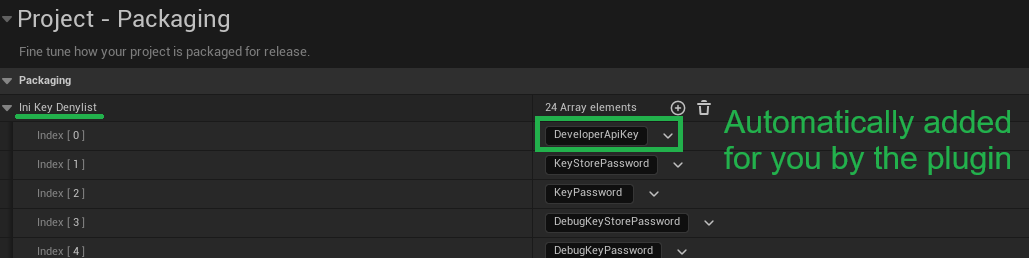
- They key will not be packaged in the final package. The plugin will automatically strips it out during packaging.
Generate plugin API Keys
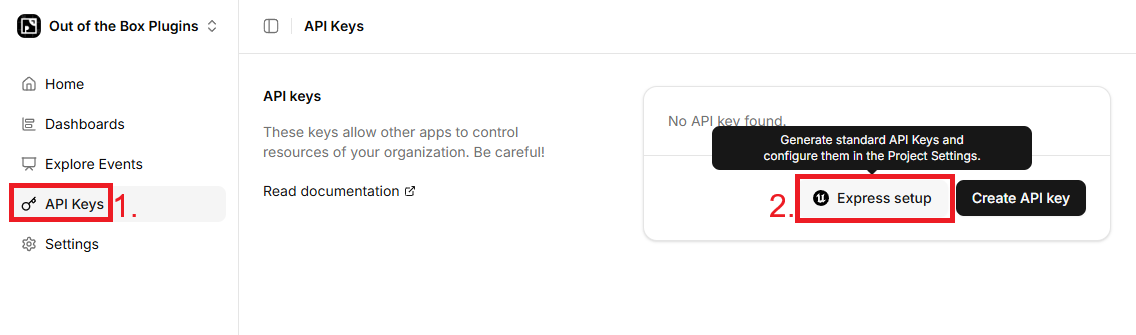
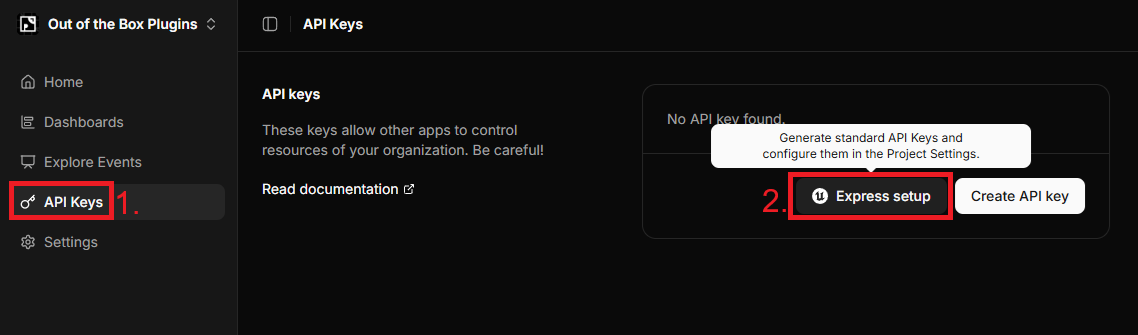
Open the API Keys page.
Click the Express setup button.
⚠️ For the
Express setupbutton to be enabled, make sure that:
- The Unreal Engine plugin mentioned above is installed and enabled in your project
- Your project is currently open (a restart is required after installing the plugin)
- If prompted, accept
Local Network Accesspermissions or enable them via your browser’s website settings
Accept from Unreal
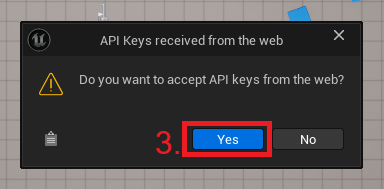
After clicking the button, a popup should appear inside Unreal Engine.
Click Yes to automatically configure the project using the payload sent from the dashboard.
⚠️ If the popup does not appear, check the Unreal Editor window and any secondary monitors you may be using.
Observe Results
In the Project Settings tab, under the Cast To Cloud category, you should now see the Runtime API Key and Developer API Key fields pre-filled.
Below each key, their pre-configured permissions should also be displayed.
